Tracebit Documentation
Complete guide for installation, configuration, and usage
1. Introduction
Thank you for purchasing Tracker. This tool integrates with the Rise app to help you track time, manage projects, monitor attendance, and review productivity snapshots.
This documentation will guide you through installation, configuration, and day-to-day usage.
2. System Requirements
- PHP 7.4+ on the server running Rise
- Active Rise account with valid credentials
- Stable internet connection
- Tracker desktop app or browser-based panel
3. Package Contents
Your download includes:
tracker/– The Tracker application filesdocumentation/– This documentation filelicense.txt– License informationchangelog.txt– Version history
4. Installation process for Tracebit plugin
- Download and unzip the package from CodeCanyon.
- You will get
tracebit.zipfile - Go to rise crm setting → plugins → All plugins → Click on install package and upload your
tracebit.zipfile - No need envato purchase code and click on install button for install
- Click on active button for active from right side settings
- Now you will get Tracebit menu from left menu sidebar and it is ready for use now
5. Installation process for Tracebit desktop app
- Download desktop app for win, mac and linux from this url: Download Desktop App
- Use the following default API endpoint:
http://yourapiendpoint.com - Click Configure API Endpoint at any time to change it later.
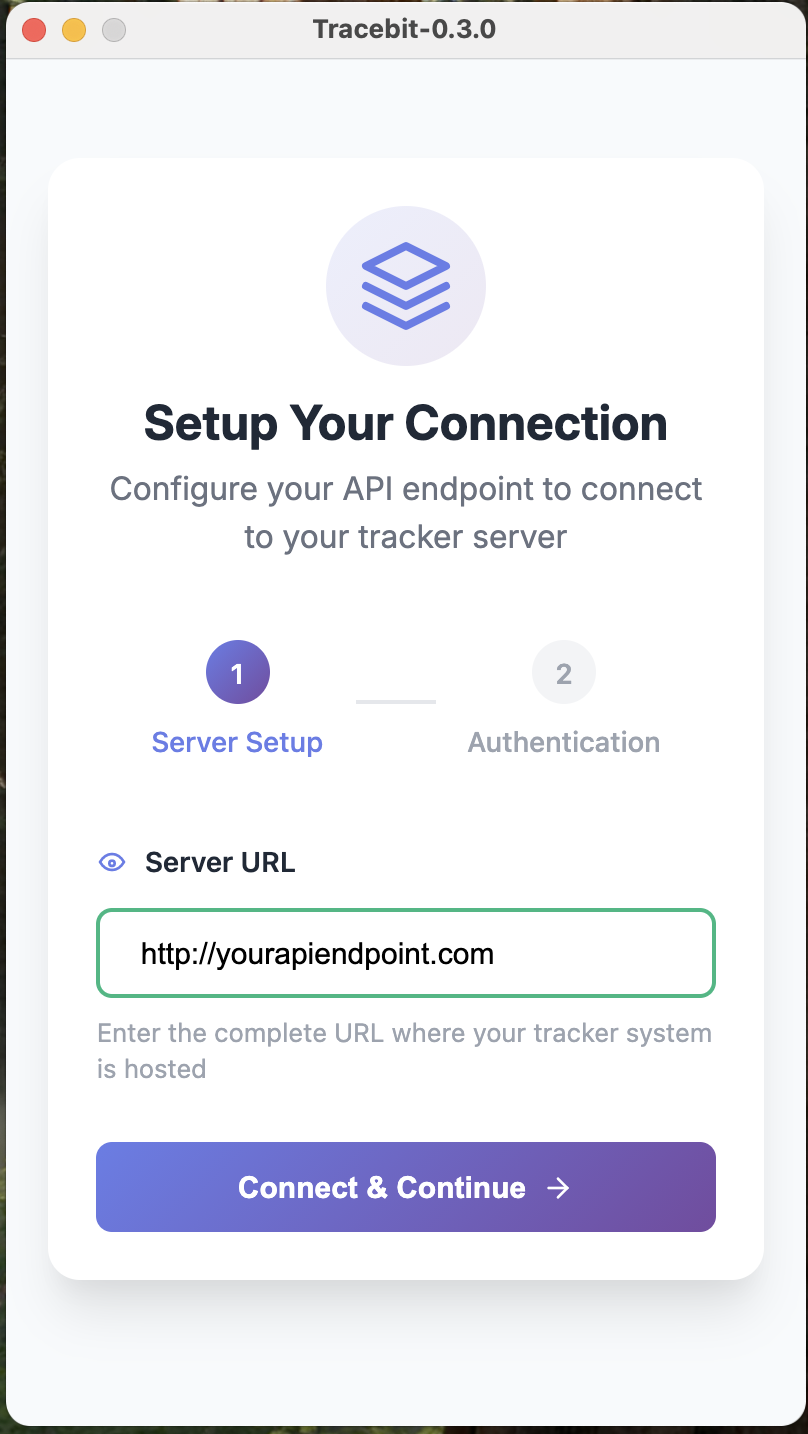
6. Sign In
- Open the Tracker application.
- Enter the same email and password you use for your Rise app.
- Click Sign In to access the dashboard.
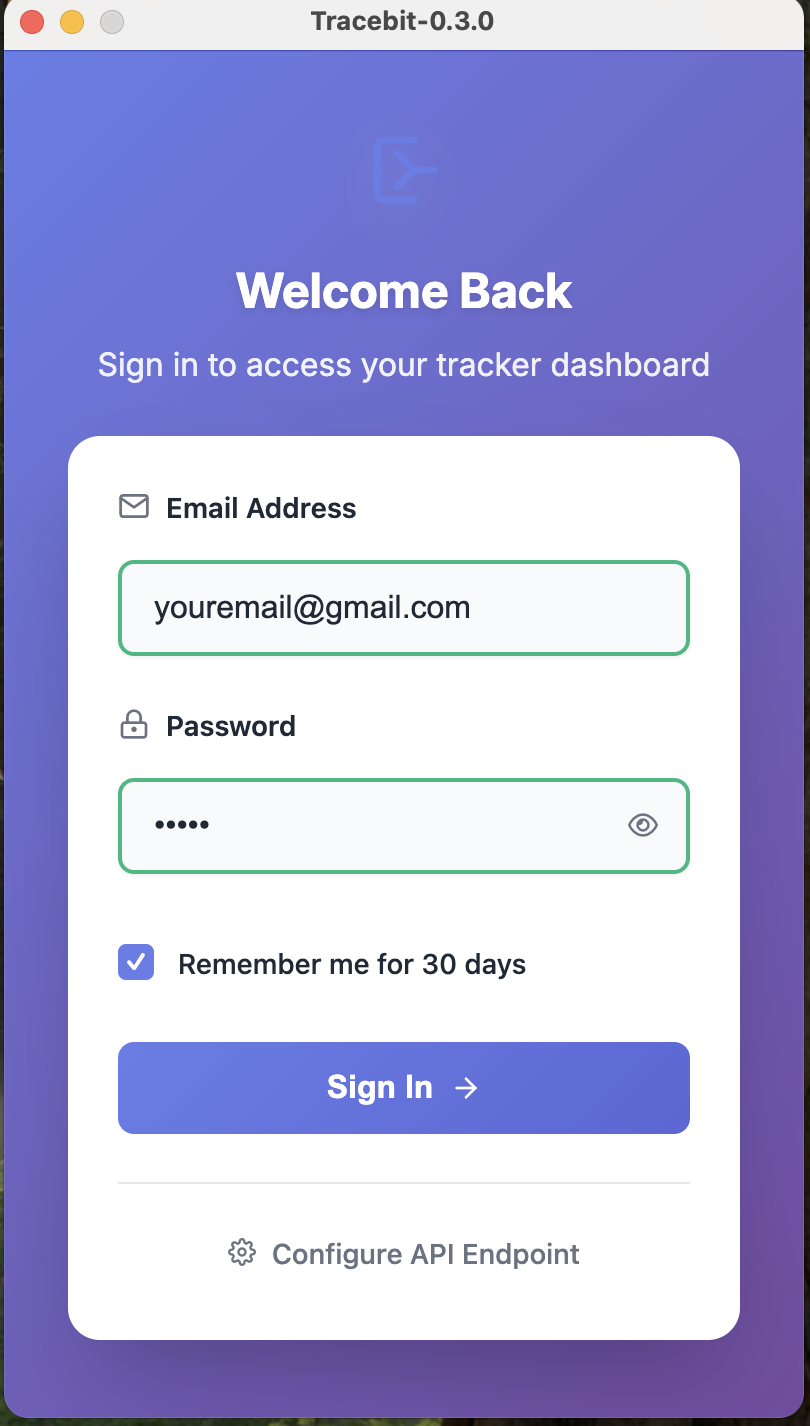
7. Dashboard Overview
The dashboard is your main workspace.
Break Button
Start or end your break.
Project Timer
Track time spent on specific projects.
Profile Button
Access your profile and settings.
Check-In / Check-Out Button
Log work attendance.
Total Timer
See your total time tracked for the day.
Project Search
Quickly find and switch projects.
Add Project Button
Create new projects directly from the dashboard.
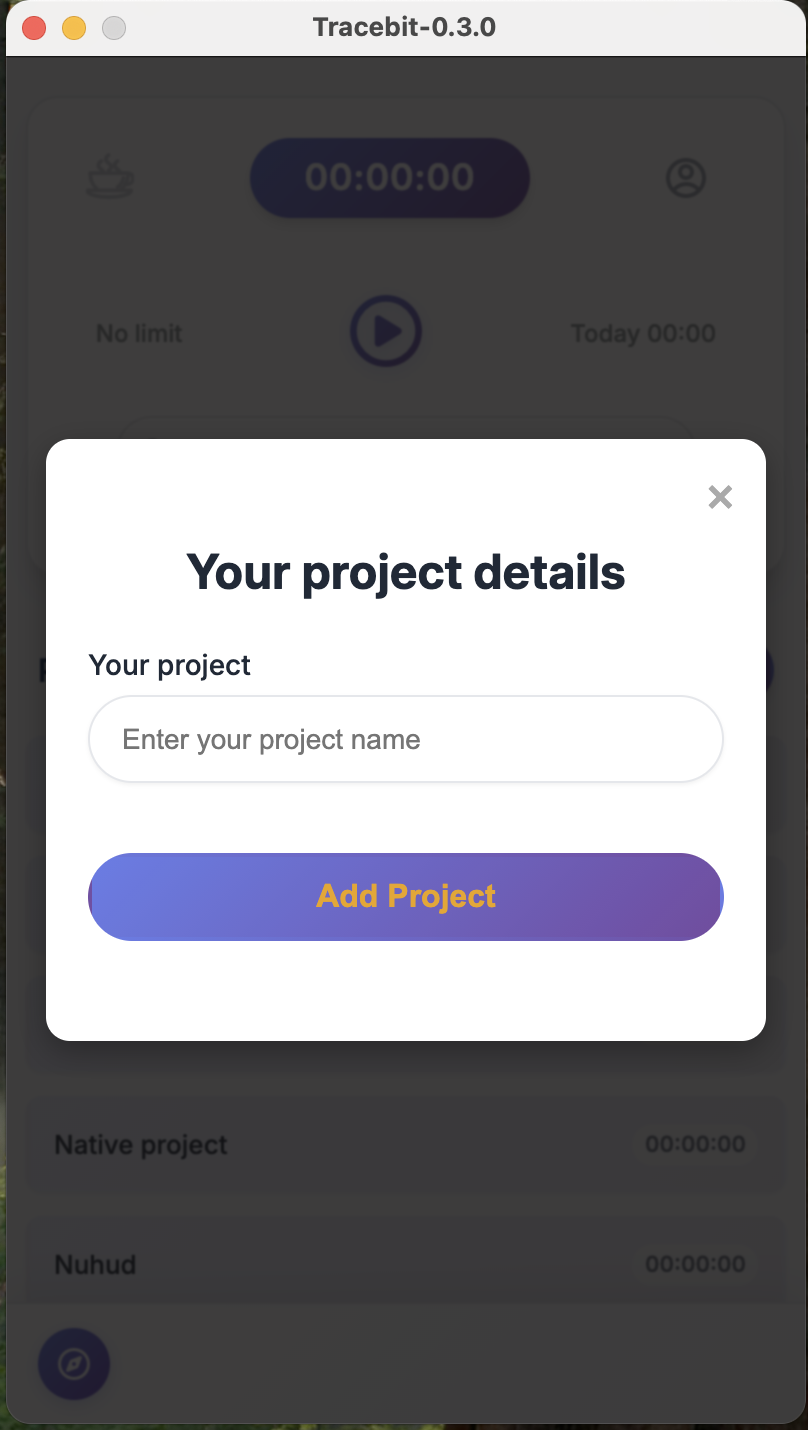
8. Plugins
Tracker includes powerful plugin modules to extend functionality.
Dashboard Plugins
Attendance Recap
Summarize attendance logs.
Project Recap
Get time and activity details per project.
Daily Time Status
Break down hours worked per day.
Recent Snapshots
View the latest screen captures.
Team Activity
Live updates of team work status.
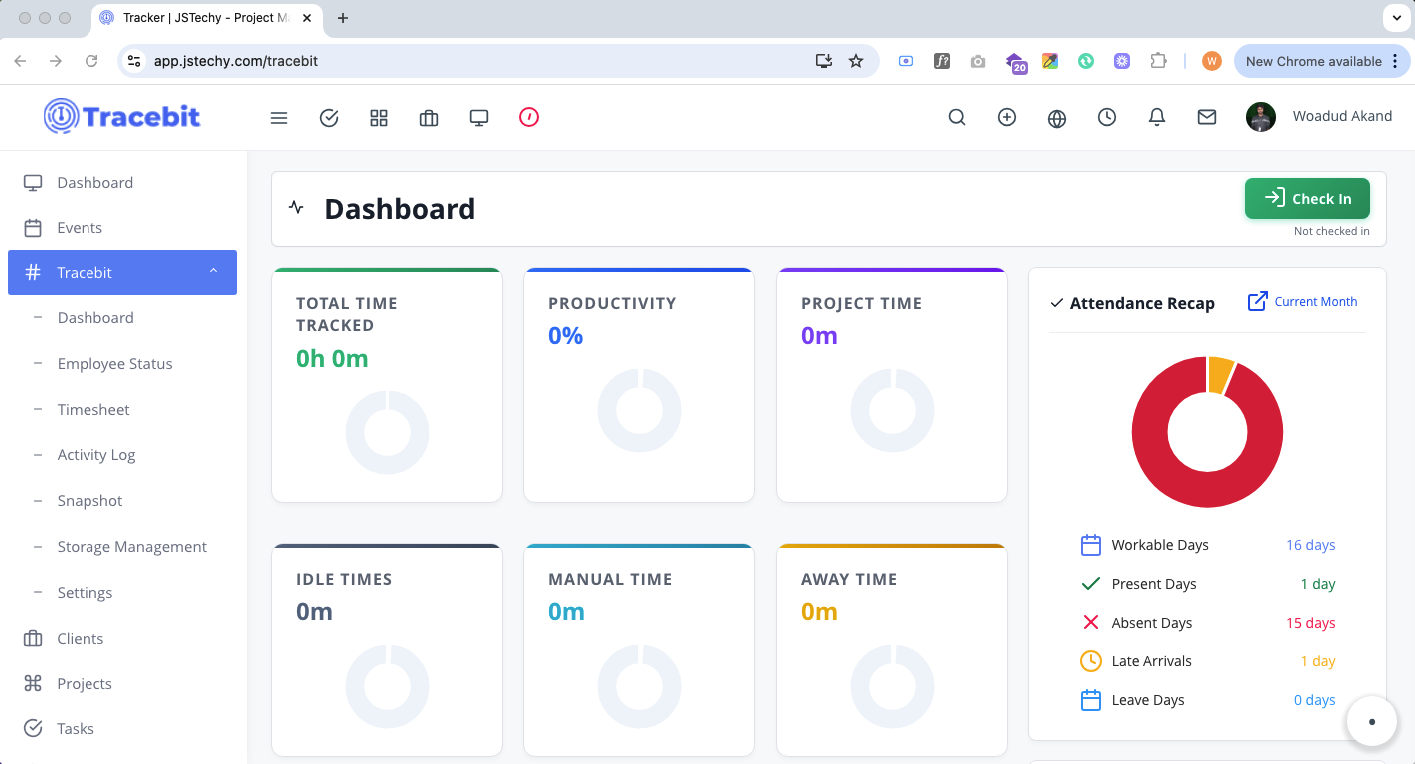
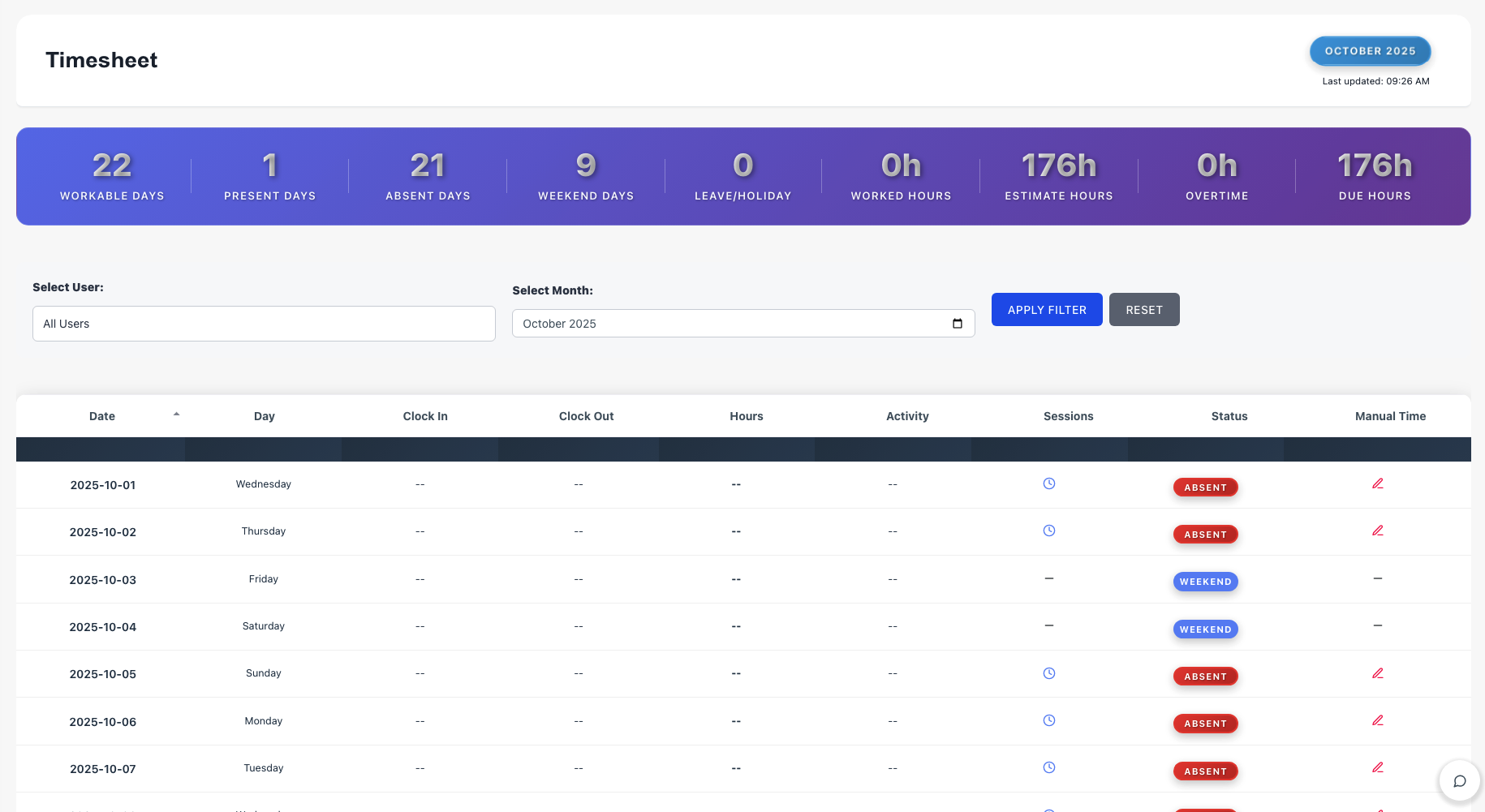
9. Timesheet
The Timesheet module allows you to review and manage recorded time.
Employee Status
Monitor availability and productivity of team members.
10. Activity Log
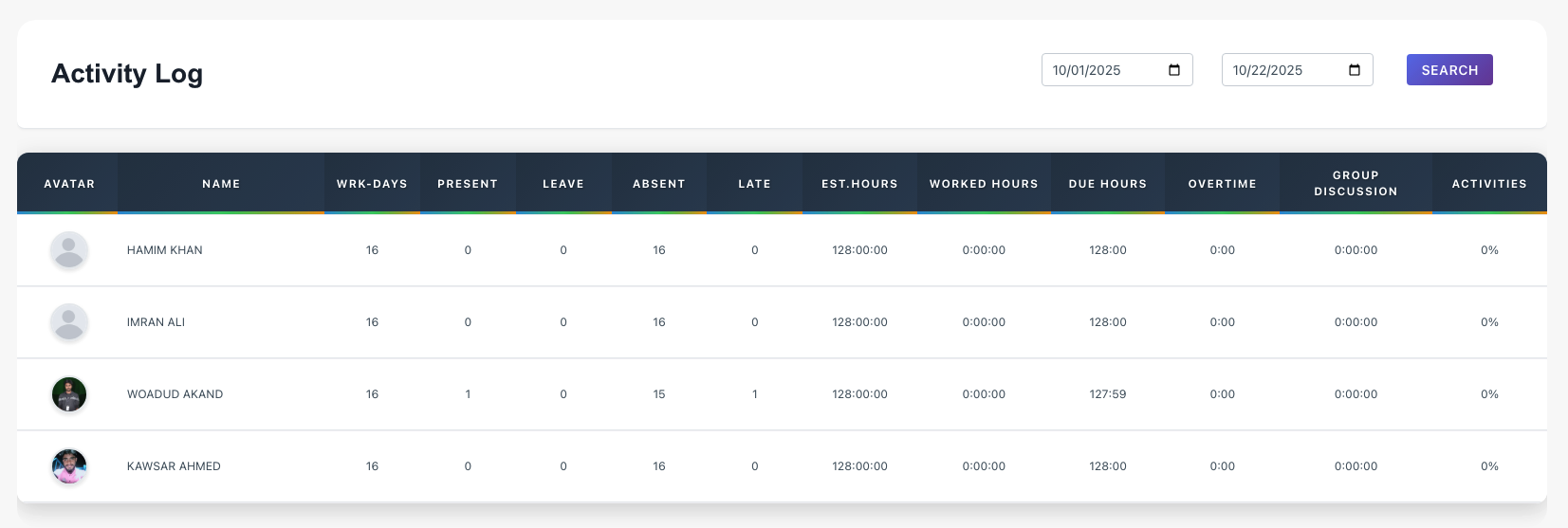
The Activity Log provides a detailed timeline of actions and events.
It's ideal for reviewing daily productivity and tracking changes.
11. Snapshots
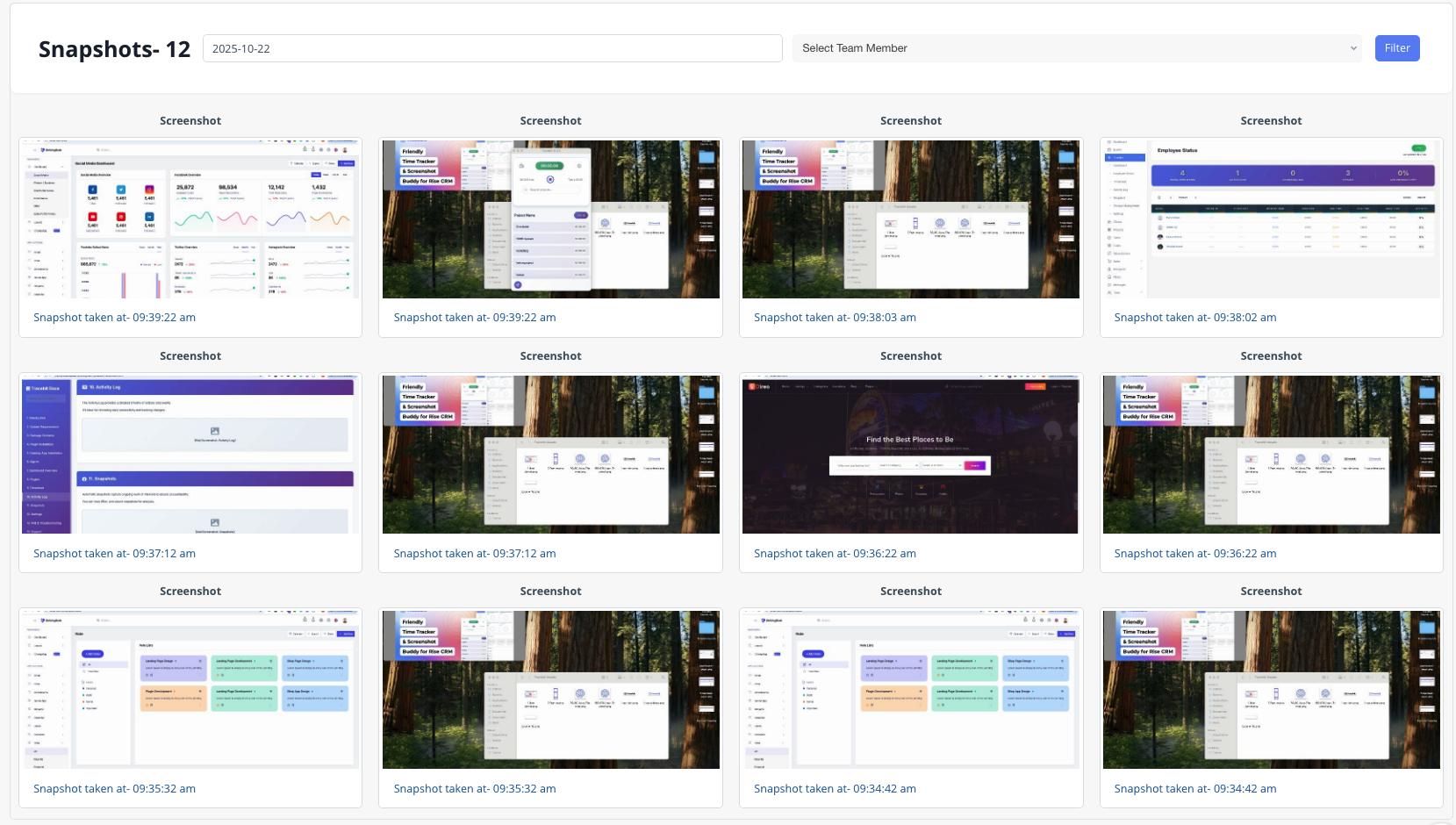
Automatic snapshots capture ongoing work at intervals to ensure accountability.
You can view, filter, and export snapshots for analysis.
12. Settings
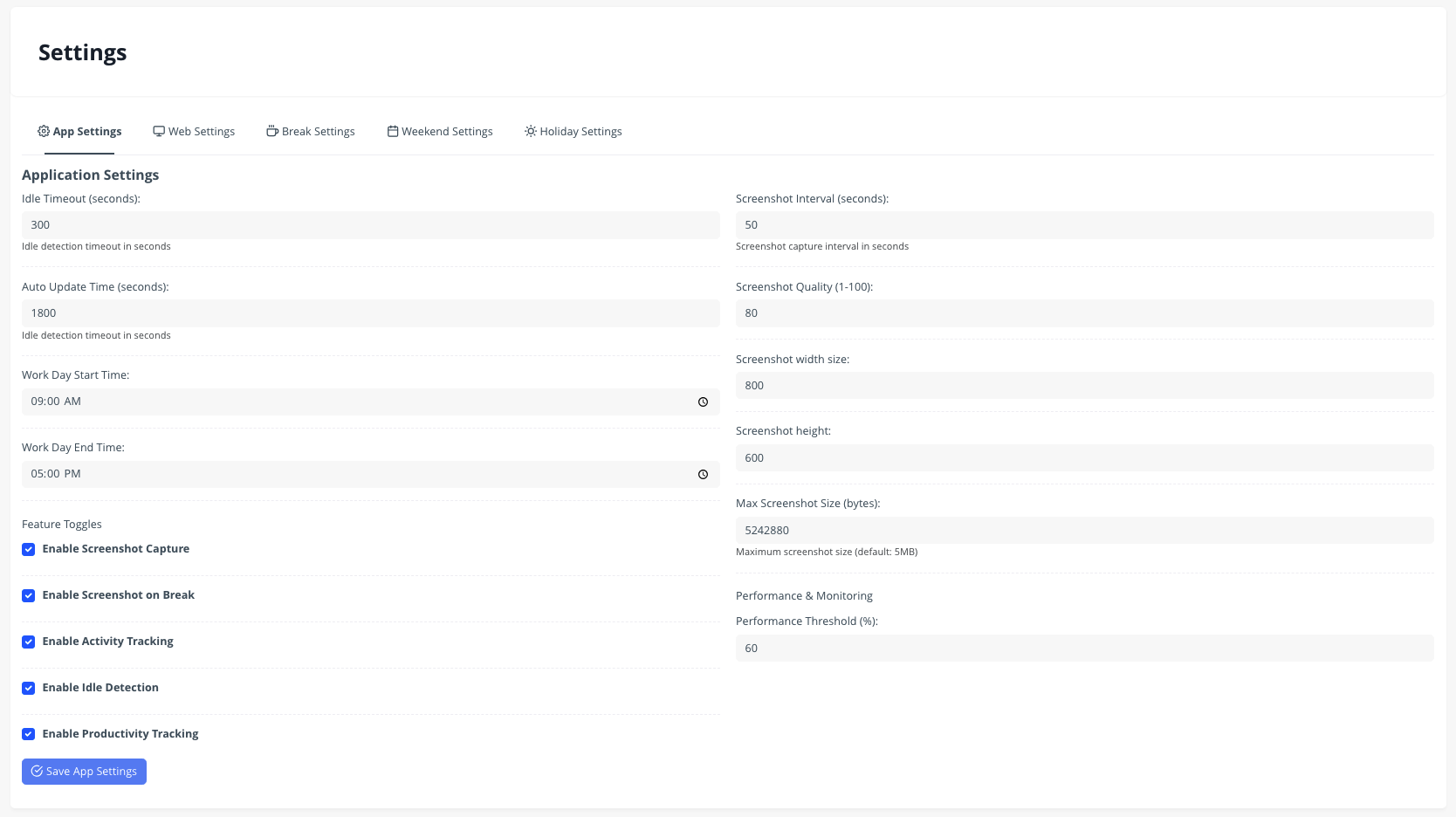
Use the Settings section to:
- Change your API endpoint
- Update your profile
- Configure plugin options
- Adjust notification and snapshot frequency
13. FAQ & Troubleshooting
Q: My API endpoint isn't connecting.
A: Double-check the URL in Settings > Configure API Endpoint.
Q: I can't log in with my Rise credentials.
A: Make sure your Rise account is active and you're using the correct password.
Q: Snapshots aren't appearing.
A: Verify the snapshot feature is enabled in Settings and you have sufficient permissions.
14. Support
If you need support, please contact us via your ThemeForest account under the Support tab of our item page.
We respond to all support tickets within 1–2 business days.
15. Changelog
Keep track of your version updates:
v1.0.0
Initial release
v1.1.0
Added Team Activity and Project Recap plugins
v1.2.0
Performance improvements and bug fixes
16. Credits
- Rise App Integration – © [FairSketch]
Tips to Finalize
- Add real screenshots everywhere marked
- Save this as a PDF or HTML file inside the package
- Make sure your ThemeForest zip includes the /documentation/ folder